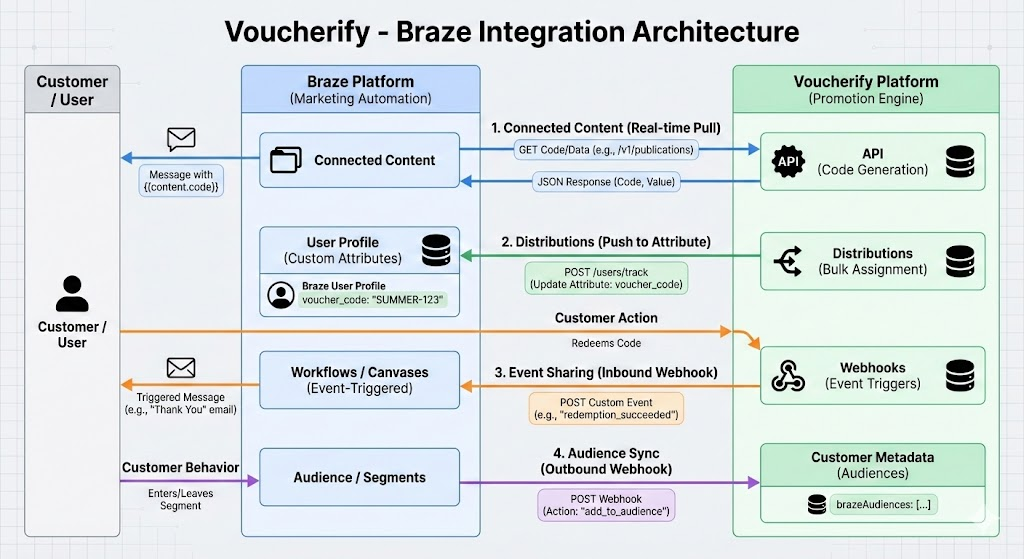
Thanks to this integration, you can trigger messages to be sent using Action Based Delivery. Additionally, you can synchronize Braze audience IDs to Customer metadata. This feature allows the creation of promotions targeted at specific customer groups segmented in Braze.
The integration with Braze consumes API limits for Connected Content and webhook limits for sending codes to Braze with custom attributes, as well as synchronizing the audience in Braze.

How does it work?

The Inbound integration enable you to send Voucherify events to Braze. First, connect your Voucherify account with Braze.
  1. Copy the REST API Key from your Braze account (it should at least have a permission users.track)
  2. Go to the Integrations directory in your Voucherify dashboard**, find Braze and choose Connect.
  3. Paste the copied API Key from Braze and choose Connect.

Events sent to Braze

The following list portrays the list of events sent to Braze.

Tracking events

You can track events as follows. Track events taking place in Braze by heading to Data > Custom Events in your Braze account or Analytics > Custom Events Report in a new view. Example of such an event would be action-based delivery. Select the period of time and events that interest you from the available list (events that you send to Braze are automatically added to the search list).

Customer-specific events

It is also possible to take a closer look at the actions performed by a specific user rather than general statistics by heading to Users > User Search or Audience > Search Users in a new view.

Action based delivery

Trigger notifications to be sent based on custom events. In the second step of the campaign creation process, Schedule, you can select action-based delivery. This type of campaign lets you use your custom events. From the list select Perform Custom Event and add it as a trigger. Then, another list will pop up with events that you have sent to Braze. You can, as an example, send new codes to all customers who failed to redeem their vouchers and try to make up for their disappointment.
Campaigns may use a Connected Content script to publish a unique coupon code and send it in a Braze message. More information about it in this article.

Update Voucherify customer segments

The Braze Outbound Integration allows for one-way customer data synchronization from Braze to Voucherify with Braze Canvas Webhooks. You can create promotions targeted at specific customer groups segmented in Braze. This integration is based on a call to a dedicated URL on Voucherify’s side and will bring the customer’s audience_id existing in Braze into Voucherify.
ClusterWebhook URL
Europehttps://braze.voucherify.io/braze/customer-webhook
United Stateshttps://us1.braze.voucherify.io/braze/customer-webhook
Asiahttps://as1.braze.voucherify.io/braze/customer-webhook
Remaining Clustershttps://{cluster}.braze.voucherify.io/braze/customer-webhook (use your dedicated cluster)
StructureDetails
AuthenticationapplicationId
secretKey

Note: Keys are available in Voucherify Dashboard → Project Settings → Application Keys.
HTTP MethodPOST
Request BodyThe request body contains 3 required parameters, the rest are optional.

Request Body Parameters/Data Mapping

ParameterDefinition / Options / Mapping
action (required)"add" to add members to the audience
"delete" to remove members from the audience

This operation adds or removes the customer metadata field brazeAudiences from the customer’s profile in Voucherify.
audience_id (required)The audience_id can have any value from Braze Canvas. All customers in a segment will share the same audience ID stored in Voucherify customer metadata, for example:

brazeAudiences: ["brazeAudienceID"]
user_id (required)Braze user_id
email_addressMaps directly to Voucherify’s email field
first_nameConcatenates with last name into the customer’s name field
last_nameConcatenates with first name into the customer’s name field
countryMaps to Voucherify customer address (country)
cityMaps to Voucherify customer address (city)
phone_numberMaps to Voucherify customer address (phone)
user_id (required)Braze user_id
email_addressThe email maps directly to Voucherify’s email field
first_nameThe first name and last name will concatenate in Voucherify into the customer’s name field
last_nameThe first name and last name will concatenate in Voucherify into the customer’s name field
countryThis maps directly to the customer’s address in Voucherify (the country address parameter)
cityThis maps directly to the customer’s address in Voucherify (the city address parameter)
phone_numberThis maps directly to the customer’s address in Voucherify (the phone parameter)

How to tie it all together in Braze

  1. In Braze, create a new Canvas using the Canvas Flow editor
  2. When you create a message, select Webhook with a blank template 
  3. Enter the URL of the endpoint in Webhook URL, i.e. https://{cluster}.braze.voucherify.io/braze/customer-webhook
  4. Enter all the required parameters in the Request Headers
    • applicationId: Application ID 
    • secretKey: Application Token
    • HTTP Method: POST
  5. Enter all the required parameters in the Request Body
    • action: “add” to add members to the audience, or “delete” to remove members.
    • user_id: Use personalisation in the editor to add a Braze user ID, for example, {{${user\_id}}}.
    • audience_id: Type the ID of the audience to update, for example, 608.

Sending events through Braze webhook messages

Build a Canvas with a webbook as a message channel to send events to Voucherify through Braze.  For example:
  • Mark a referral as complete by forwarding a Braze event to Voucherify,
  • Give a voucher to a customer when they register on your website.

Entry schedule, audience, and send settings

Configure when your users enter the Canvas and the sendout of the event to Voucherify.
  1. Choose an entry schedule (when your users enter the Canvas) as Action-Based – a user performs an action to enter the canvas.
  2. Choose the custom event from the drop-down list.
  3. Provide a start time when the users will start entering the Canvas.
  4. In Target Audience, choose All Users.
  5. In Send Settings, choose All users including unsubscribed users.

Build canvas

Configure your Canvas to send events from Braze to Voucherify.
  1. In the flow, click Message.
  2. In Messaging Channels, add a Webhook.
  3. In the Settings tab, add the Braze integration keys from Voucherify.
    • In Voucherify, go to Home and Project Settings.
    • Scroll down to Integration Keys.
    • Copy your integration keys.
  4. In Braze, provide your X-App-Token and X-App-Id.
  5. Choose the POST method.
  6. In the Compose section, add https://api.voucherify.io/v1/events to the Webhook URL.
  7. In the Request Body, form the proper payload for the track event endpoint.
{
    "event": "user_registered",
    "customer": {
        "source_id": "{{${user_id}}}"
    }
}
  1. Test the configuration by sending an event to a Braze profile. Check if it is forwarded to Voucherify.
Endpoint : /users/track Payload:
{
   "events": [
       {
           "external_id": "uniqueUserId",
           "app_id": "xxxxxxxx-xxxx-xxxx-xxxx-xxxxxxxxxxxx", 
           "name": "user_registered", 
           "time": "2024-03-07T19:03:52Z"
       }
   ]
}