

The integration with Iterable uses API limits for Data Feed.
Configuration
Voucherify offers different API requests that can be integrated with tools that understand REST APIs. Iterable works similarly: you can add the APIs as data feeds and use the feeds in a template. The data feeds must use Voucherify’s API keys for Iterable. To generate the keys, go to the Project Settings. In the General tab, scroll down to Integration Keys and create a new integration API key for Iterable. In the Name field, enter the name for your key. In the drop-down lists, select User in Role and Iterable in Integration. Once the API keys are generated, you can create data feeds in Iterable. Go to your Iterable account and select Content > Data feeds. Select the CREATE NEW FEED button in the upper right part of the screen to create a new data feed. The data feed will use Voucherify’s publication mechanisms that assign a voucher to a customer. To add this mechanism to Iterable send-outs, you need to combine:- Voucherify’s publication endpoint URL,
- The application keys,
- A parameter that identifies the customer in Iterable,
- The Voucherify campaign that is the source of the vouchers.
YOUR API ENDPOINT/v1/publications/create.
Use the table below to find your endpoint for publications.
The API URL must contain not only the customer’s ID as a parameter but also the name of the campaign. In this section, you will see how to receive a voucher from the Welcome Codes campaign.
Here is an example of a URL:
https://api.voucherify.io/v1/publications/create?customer[source_id]={{#urlEncode}}{{source_id}}{{/urlEncode}}&campaign[name]=Welcome Codes
Each data feed has to be connected to a separate campaign.
You need to input the data accordingly.

Cache data feed response
Select this option if your data feed returns the same result for all recipients. For example, a feed that provides the current list of active promotions. When enabled, Iterable caches the feed’s response for one hour.- If the same feed URL is requested again within that hour, Iterable uses the cached response.
- If not, Iterable sends a new request to the feed.
Iterable templates with a data feed
When adding your Voucherify code variable to an Iterable message template, you can reference it directly from the connected data feed. If your setup involves a single Voucherify campaign connected to a single Iterable data feed (the most common and recommended scenario), use:[[voucher.code]]
This variable will automatically populate with each recipient’s unique code published from Voucherify.
Example:
Use your exclusive code [[voucher.code]] to get 10% off your next order!If you are using multiple Voucherify campaigns or data feeds within the same Iterable project, each feed must have a unique alias. In that case, you can reference the code with its alias prefix, such as:
[[welcome_codes.voucher.code]]
Make sure the alias (welcome_codes in this example) matches the one defined in your Iterable data feed settings.
The data feed will trigger the API request every time you send a message to a customer. You can show the end result in the message by providing the voucher code from the data feed. Since the goal is to show the voucher code to the customer and the alias is defined, add the following value to the message [[voucher.code]]
The API requests return the complete definition of the coupon code, so if you have added any kind of information to the metadata, it can also be shown in the same way: [[voucher.code.voucher.metadata.marketing_text]]
As a result, the data feed will contain the information about the voucher, which has been assigned to the customer, including the voucher code and the marketing text.
In the image below, you can see how data is fed to the message:
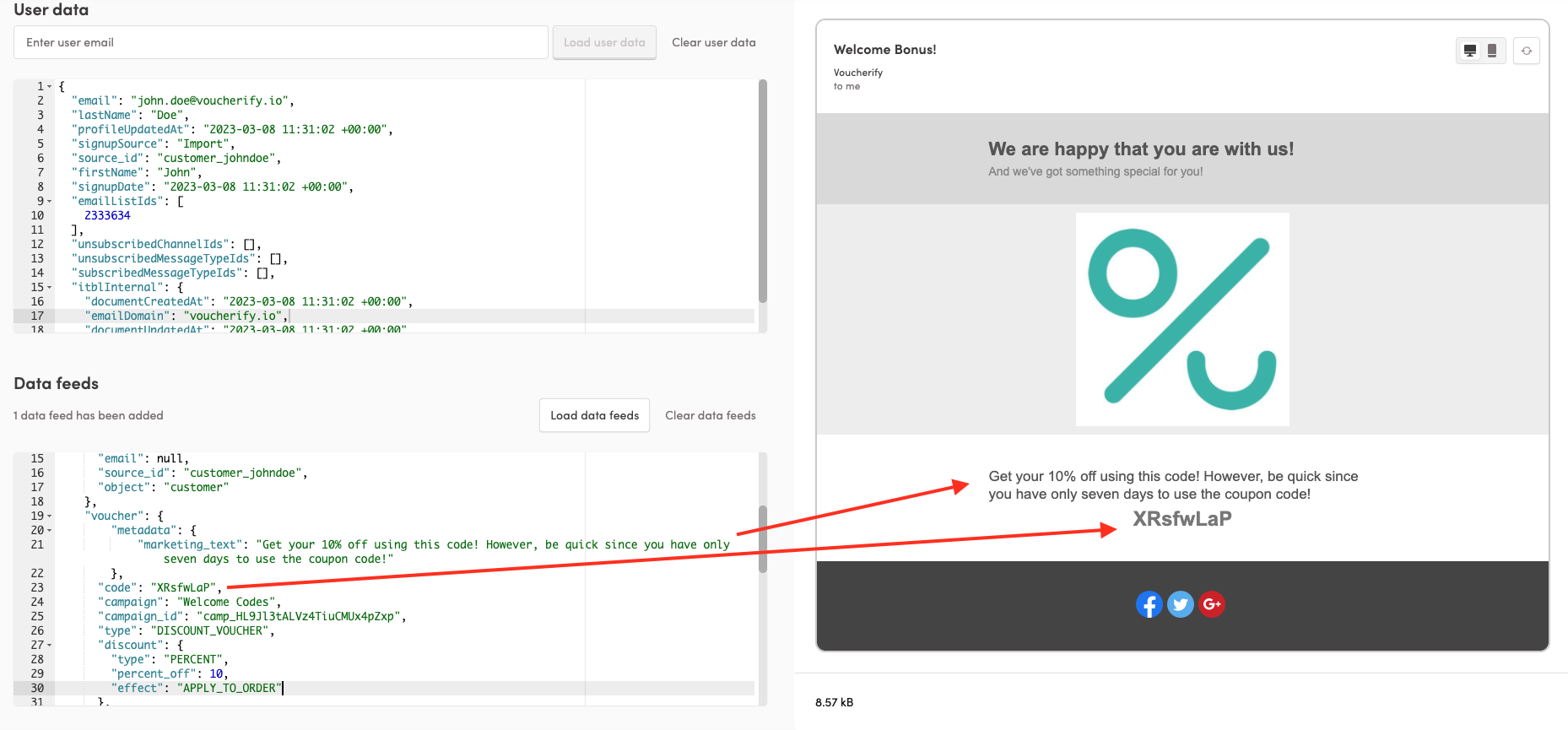
Voucherify to Iterable integration
Besides pulling data from Voucherify into Iterable using a data feed, it is also possible to send data from Voucherify to Iterable. This section describes an example integration where Voucherify uses custom webhooks to notify Iterable about events that happen in Voucherify. Iterable can then react to those events and send customer communication defined as Iterable campaigns.Voucherify to Iterable: Example use case
In this example:- Customer completes an action, such as a successful referral
- Voucherify publishes a reward, for example a discount code
- Customer receives an email sent from Iterable
Flow
1
Trigger a referral reward
A successful referral assigns a reward to the customer.
2
Publish the reward
Voucherify publishes the reward to the customer profile.
3
Trigger distribution
Publishing the reward automatically triggers a Voucherify distribution.
4
Send webhook to Iterable
The distribution sends a custom webhook request to the Iterable API endpoint.
5
Send triggered email
Iterable processes the webhook and sends a triggered email to the customer.
- Iterable can pull data from Voucherify using data feeds.
- Voucherify can send data to Iterable using custom webhooks.
Create a triggered email campaign in Iterable
In Iterable, create a triggered email campaign:- The campaign is used to define the email content
- No data feed should be selected
- The campaign is triggered directly using an Iterable API endpoint
couponCode field inside dataFields, add the following to the template:
{{couponCode}}
At send time, Iterable replaces this with the actual value passed in the webhook request.
This syntax only works because the campaign is triggered by the same API call that carries the data. If you reference the field anywhere else, for example in a blast campaign, it won’t resolve.
Generate an Iterable API key
To allow Voucherify to send requests to Iterable:1
Open integrations in Iterable
In Iterable, go to Integrations.
2
Create an API key
Create a new API key, and set its type to Server-side.
Server-side keys have full read/write access and are meant to be used only in server-to-server calls, like the webhook Voucherify sends here. Don’t use a client-side key for this integration.
3
Save the API key
Save the API key for later use.
Configure a Voucherify distribution trigger
In Voucherify, configure a distribution that is triggered when a reward is published. Example configuration:- Trigger:
successfully published - Reward type: discount code
Configure a custom webhook in the distribution
In the distribution action, configure a custom webhook.1
Target URL
Set the webhook’s target URL to Iterable’s campaign trigger endpoint:
- US-hosted (USDC) projects:
https://api.iterable.com/api/campaigns/trigger - EU-hosted (EDC) projects:
https://api.eu.iterable.com/api/campaigns/trigger
2
Headers
Add an authorization header using the Iterable API key:
- Header name:
api-key - Header value:
<ITERABLE_API_KEY>
Voucherify’s header-name field requires lowercase. Entering
Api-Key (capitalized) will be rejected and won’t let you proceed. This doesn’t affect Iterable’s side. HTTP header names are case-insensitive, so api-key is delivered and read the same way as Api-Key would be.3
Payload
The webhook payload must follow Iterable API requirements.Enable the Send raw payload checkbox.Important fields include: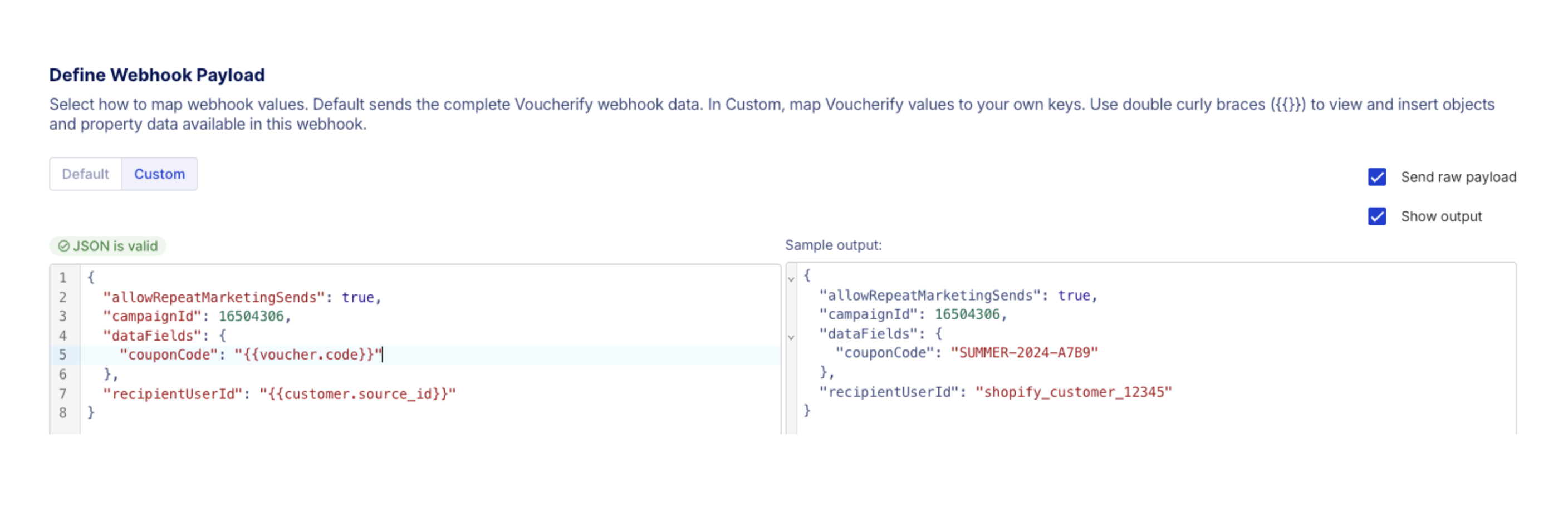
recipientUserId– identifies the Iterable user who should receive the emailcampaignId– identifies the triggered email campaign - you will find it in IterabledataFields– values used inside the email template
{{Payload example:4
Align customer identifiers
To send the email to the correct user:
- The Voucherify customer must have a
source_id - The same value must exist as the Iterable
userId
Result
When a reward is published in Voucherify:- The distribution is triggered
- Voucherify sends a webhook request to Iterable
- Iterable sends a triggered email to the customer
- The email includes values such as the published discount code
This section shows one example of sending data from Voucherify to Iterable using custom webhooks.Other Iterable endpoints can be used in a similar way. These options are not described here and are left for customers to explore.