

- Sharing of promo codes, referral codes, loyalty card codes, and gift cards.
- Sharing related campaign information such as publication dates or QR codes.
- Saving and updating custom properties in Klaviyo related to the Voucherify distribution.
- Creating and modifying customers in Klaviyo.
The Voucherify integration with Klaviyo uses messages limits for sending codes to Klaviyo. You can read more about messages limits in our Fair Use Policy.
Voucherify distribution triggers
When setting up distribution in Voucherify, you can use Klaviyo with the following triggers:- Customer left segment (send and publish unique codes from campaign)
- Customer entered segment (send and publish unique codes from campaign)
- Order updated (send and publish unique codes from campaign)
- Order paid (send and publish unique codes from campaign)
- Order created (send and publish unique codes from campaign)
- Order canceled (send and publish unique codes from campaign)
- Successfully published
- Custom event (send and publish unique codes from campaign)
- Manual message (send and publish unique codes from campaign)
- Loyalty points added
Bulk import codes to Klaviyo
Example Business Case: Bulk Voucher Distribution for Large-Scale Campaigns This approach covers exporting unique voucher codes from Voucherify and importing them into Klaviyo as a set of unassigned coupons for use in email or SMS campaigns. It allows for easy and efficient distribution of vouchers without complex API integrations and customer data sync processes.Step-by-step process
Generate voucher codes in Voucherify
- Create a Bulk Unique Codes Campaign in Voucherify. This allows you to generate a set of unique codes with all additional features – validation rules, expiration dates, usage limits, etc. You can generate as many codes as you need.
- Export the codes from Voucherify in a CSV file, the Code field is required in this scenario.
Prepare the CSV file for Klaviyo
- Open the exported CSV file in a spreadsheet editor.
- Rename the column header “Code” to “Coupon Code” or “Coupon” (in the first cell, A1).
- Save the file as a CSV file – with the proper column header, the file is ready to be uploaded in Klaviyo.
Klaviyo coupon code file requirements
- The maximum file size is 50 MB.
- There should be only one column in your file, and the first row of your file should be a header, labeled
CouponorCoupon Code.
Import and use codes in Klaviyo
- In Klaviyo, enable the Coupons tab under the Content section.
- Upload the unique codes into Klaviyo.
- Refer to codes in Klaviyo message templates.
In the preview mode, Klaviyo shows a placeholder value like
{your uploaded coupons name}-PREVIEW to avoid using up any real codes.Ensure sufficient codes
It is crucial to ensure that the number of voucher codes imported matches or exceeds the size of your send-out. For example, if you are sending a campaign to 1000 customers, make sure that at least 1000 unique voucher codes have been imported. If the codes run out during the campaign, some recipients will not receive a voucher.Summary
This approach is ideal for businesses wanting to execute quick, large-scale campaigns with minimal technical complexity. By leveraging Voucherify as the code generation tool, marketers can efficiently manage large volumes of unique codes and import them into Klaviyo for seamless distribution across their customer base.Updating Klaviyo’s profile custom attributes using Voucherify’s plugin
Integration configuration
The integration requires generating a new API key in Klaviyo. Additionally, the API key needs to be configured to ensure full access to the API Scope – Profiles to allow Voucherify to add and modify customer attributes. In Klaviyo, go to Settings > Account tab > API keys tab on the left sidebar. Select Create Private API Key to generate a new key and choose Full Access for Profiles. Once the API key is added, it will be visible in Klaviyo. With the Klaviyo API key ready, connect both tools by going to Voucherify Dashboard > Integrations tab. Select Klaviyo and provide the API key in the pop-up screen.Distribution and assignment of promo codes
With both platforms connected, you can start a new Voucherify distribution that assigns a unique code to the Custom Properties in the user profile in Klaviyo. Later, you can use received attributes in your Klaviyo campaigns and emails. Create a new distribution. Choose the trigger, fill in the name, and choose to send and publish codes from Voucherify. Choose the source of codes from a selected campaign. Next, select Klaviyo as the distribution channel and map the fields you want to transfer to Klaviyo. Note that each published voucher will be transferred alongside the respective barcode and QR code, allowing you to run omnichannel campaigns. You can map the following fields:- Voucher code
- Voucher value
- Voucher balance (loyalty and gift cards only)
- Publication date
- Customer preference center URL
source_id in Voucherify should match either the External_id of the profile or the Unique ID of the profile in Klaviyo. If the customer profile still has not been found, Voucherify sends the customer data with the phone and email address details (but without the name) to Klaviyo. Then, Voucherify’s Customer ID is used to automatically create a new External ID in Klaviyo.
Application of custom properties in Klaviyo
Once the distribution is live, Voucherify will automatically assign codes to Custom properties in user profiles in Klaviyo. The Voucherify code is added to the Klaviyo user profile as a Custom property. In case of issues, check the Analytics tab of your Voucherify Distribution for effective troubleshooting and transparent logs. With the Voucherify code saved in Klaviyo user profile, you can personalize your messaging with promo codes. All it takes is using the Klaviyo personalization feature to paste custom properties that will be dynamically upserted when the messages are sent. Besides being sent, the Voucherify code is also automatically assigned to a respective customer. You can check all owned incentives of a given customer by going to the Wallet tab on the customer profile page.Fetching coupons from Voucherify in Klaviyo flows
Example Business Case: Customer Reactivation Campaign In this scenario, the dynamic segmentation in Klaviyo can trigger Voucherify to create personalized discount coupons. These coupons are then fed back to Klaviyo and sent to customers via email or SMS. This setup can be used:- to re-engage customers who have not made a purchase in a while, aiming to bring them back to active status and increase customer lifetime value;
- to re-engage customers who have added items to their cart but left without completing the purchase;
- to automatically send personalized birthday offers to customers, increasing engagement and potentially driving sales.
Process
Concept flow
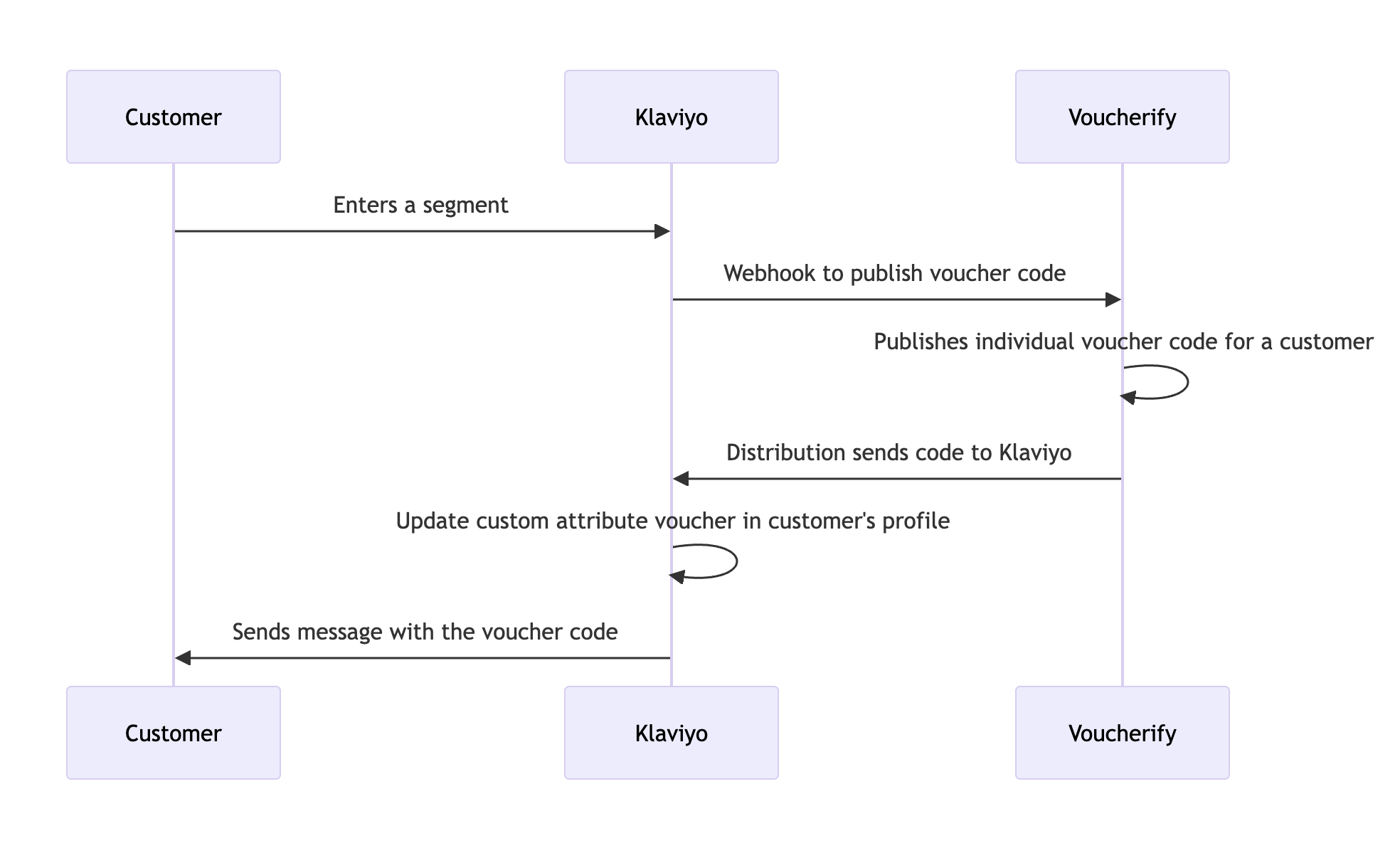
- A customer enters a segment in Klaviyo (e.g. as an inactive customer).
- Klaviyo picks up customer’s profile to be processed through the following flow:
- A webhook is sent to Voucherify to publish a voucher code from a specific Voucherify campaign and assign it to the customer (as uniquely identified by ID in Klaviyo).
- Klaviyo waits (e.g. 2 minutes) – meanwhile:
- Voucherify receives a webhook as a POST call to its Publications API and publishes a voucher code from the defined campaign and assigns it to the customer.
- Voucherify distribution is triggered to post voucher code to update the Klaviyo customer’s profile via Klaviyo API (using the Voucherify plugin).
- Klaviyo receives a request to update a custom attribute (e.g.
voucher) in the customer’s profile. - Klaviyo updates the customer’s voucher code profile attribute or creates a new custom attribute named according to the configuration in Voucherify-Klaviyo plugin.
- Klaviyo sends out a message to the customer using the template that uses a voucher code placeholder.
- The customer gets incentivized with a message containing a voucher code.
Implementation
Voucherify configuration checklist
- A discount coupon campaign, e.g. “Customer Reactivation Campaign” for $10 off of an order, is created;
- Klaviyo is connected via a dedicated plugin (see the Integration configuration section);
- A distribution is created on successful coupon publication from the proper campaign (it is called “Customer Reactivation Campaign” in the example here) and Klaviyo is selected as a distribution channel;
- In the Map fields in the Klaviyo channel configuration within the distribution: the Voucher code property is mapped to a custom attribute in the Klaviyo profile, e.g. it can be called “voucher”;
Klaviyo configuration checklist
In Klaviyo, a flow is created in which:- A trigger is a segment of customers or any other trigger;
- A webhook action is configured to send a webhook to Voucherify Publications API with the name of the specific campaign (e.g. “Customer Reactivation Campaign”) and a placeholder for customer’s KlaviyoID specified.
Webhook details
- Destination URL:
https://{region}.voucherify.io/v1/publications - Headers: Include
Content-Type: application/jsonand the necessary Voucherify API credentials (X-App-Id(Application ID) andX-App-Token) (Secret Key) that can be taken from Voucherify Project settings under Application keys section. - JSON body: Pass the data needed for Voucherify to create the voucher: campaign name and customer ID (here you would normally put a placeholder (variable):
- A 2 minute delay is configured to make sure the Voucherify distribution, an asynchronous process, updates the customer profile in Klaviyo with a voucher code before the message is sent.
- Email (or SMS) send-out is configured with a template that uses the custom attribute “voucher”.
Email template
Important considerations
Voucherify has API rate limits, which means that the volume of webhook requests must be managed to avoid exceeding them.- Customers should prepare their segments in Klaviyo in a way that ensures the number of webhook calls does not exceed 60-70% of their hourly/minute API quota for Voucherify.
- If larger segments need to be targeted, consider breaking them into smaller groups and scheduling the Flow to stagger webhook requests over time.