> ## Documentation Index
> Fetch the complete documentation index at: https://docs.voucherify.io/llms.txt
> Use this file to discover all available pages before exploring further.
# Contentful
> Learn how to integrate Voucherify and Contentful
[Contentful](https://www.contentful.com/) is a Content Management System (CMS) that helps businesses to manage and deliver digital content across various channels and devices. Thanks to the Voucherify app which is available at [Contentful Marketplace](https://www.contentful.com/marketplace/app/voucherify/) and which can be embedded in Contentful content, you can fetch resources from your Voucherify account and assign them to a specific Contentful entry.
You can link the Contentful entries to the following Voucherify resources:
* [Campaigns](/build/create-discount-coupons),
* [Earning rules](/build/earning-rules),
* [Promotion tiers](/api-reference/promotions/promotion-tier-object).
With this app, you can easily connect the content created in Contentful to Voucherify campaigns, enhancing the customer journey and your marketing teams experience by:
* Adding links to terms and conditions to your campaigns so that customers know what they need to do to receive the discounts. The terms and conditions might be similar or the same for different campaigns, making it easier for the marketing team to manage it in one place.
* Adding banners and the rules explanations to the Earning Rules so that the customers know how they can earn points. In case a banner or a logo changes, the change will be visible after updating the content in Contentful.
* Adding banners and promotion details so that your customers know when they are eligible for the discounts.
With Contentful, it is easier to update the conditions, banners, logos, and other promotional material from one place.
**The integration with Contentful uses** [API limits](/guides/limits#api-limits) **for campaigns with documentID in the metadata.**
You can view how to set up the integration here:{' '}
Voucherify and Contentful integration video.
## Setting up the integration
Follow these steps to set up the integration.
### Voucherify
On the Voucherify side, you will need to generate API integration keys for Contentful.
1. Go to **Project Settings** and in the **General** tab, scroll down to **Integration Keys**.
2. Click the plus button on the right.
3. Fill in the **Name** for your key.
4. Choose your role from the **Role** drop-down list.
5. Choose **Contentful** from the **Integration** drop-down list.
6. Click **Create Integration API Key** button.
Integration credentials are hidden after saving
When you configure an external integration, API tokens and secret keys are only shown during setup.
After you save the integration, these values are masked and cannot be viewed again in the Dashboard.
This reduces the risk of exposing sensitive credentials through the user interface.
Save your keys securely before closing the window.
### Contentful
Configure settings in Contentful.
1. Create a new [Contentful account](https://www.contentful.com/sign-up/) or request an invitation to an existing project.
2. Go to **Apps** and click the **Marketplace** button.
3. Search for Voucherify. Select it and click **Install**.
4. Select your environment and click **Authorize access**.
5. In the configuration screen, fill in the required fields:
1. Provide Voucherify API integration keys: **Application ID** and **Secret Key**.
2. Set **Custom URL** to: `https://cms-integrations.voucherify.io`. If your project uses a region other than EU1, the URL should have the prefix `https://.cms-integrations.voucherify.io`
6. Click **Verify Credentials**.
7. If the credentials are correct, click **Install**.
8. Once the installation is successful, click **Save** in the upper right corner to save the provided configuration in the Contentful app.
9. Create your own [Content type](https://www.contentful.com/help/adding-a-content-model/) or edit an existing one. In the **Content type** which includes your target fields (e.g. text, date and time, media), add a JSON object field.
10. Name the JSON object and click **Add and configure**.
11. Configure the JSON object to link to Voucherify resources such as a campaign, promotion tier, or an earning rule. In the object edit screen, scroll down to the **Appearance** section and choose the Voucherify app you have installed earlier.
12. Click **Confirm** and then **Save**.
You have now linked the Content model to Voucherify by using the JSON object field type. In the next steps, you will learn how to use this configuration in Contentful Entries.
At this point you can create your own [Entry](https://www.contentful.com/help/adding-new-entry/) and use the Voucherify app resources: **Campaigns**, **Earning Rules**, and **Promotion Tiers**.
Once integrated, Contentful automatically creates a new metadata array for linked Voucherify campaigns, earning rules, or promotion tiers upon the first connection. Each **contentfulEntity** contains the **Entry ID** and the **contentType**. If a Voucherify resource is linked to several Contentful entries, all those entries will be listed in metadata as **contentfulEntities** with respective **Entry ID**s and **contentType**s.
## Linking Contentful entries to Voucherify
The integration between Voucherify and Contentful allows your team to create and manage content directly in Contentful.
Once the integration is complete, the content with Voucherify fields can link the content to a Voucherify campaign, promotion tier, or earning rule.
In this example, a content type has a name, description, and terms and conditions fields and can be linked to Voucherify’s resources.
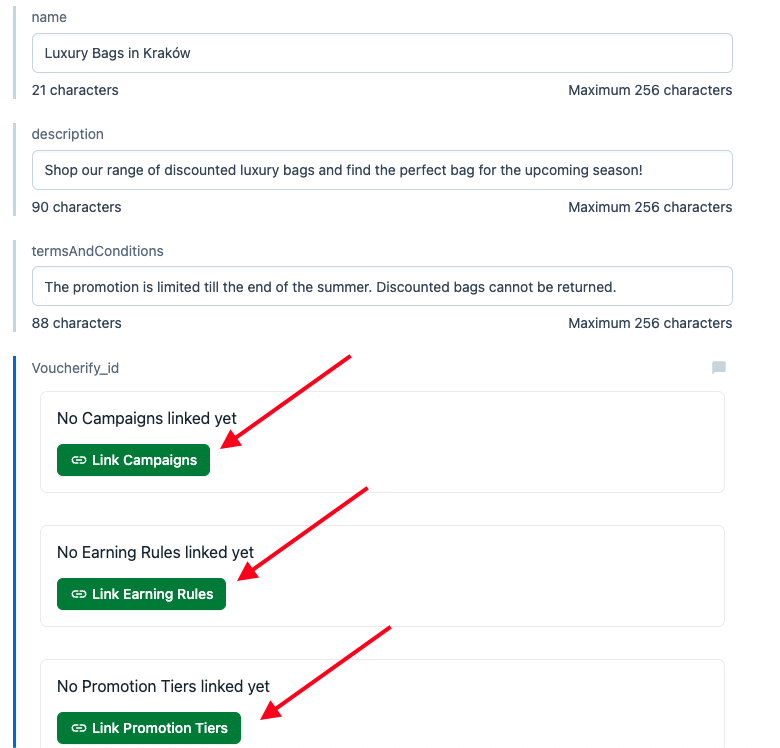 Voucherify will show the list of all the resources for you to choose from a pop-up window in Contentful with links to Voucherify campaigns.
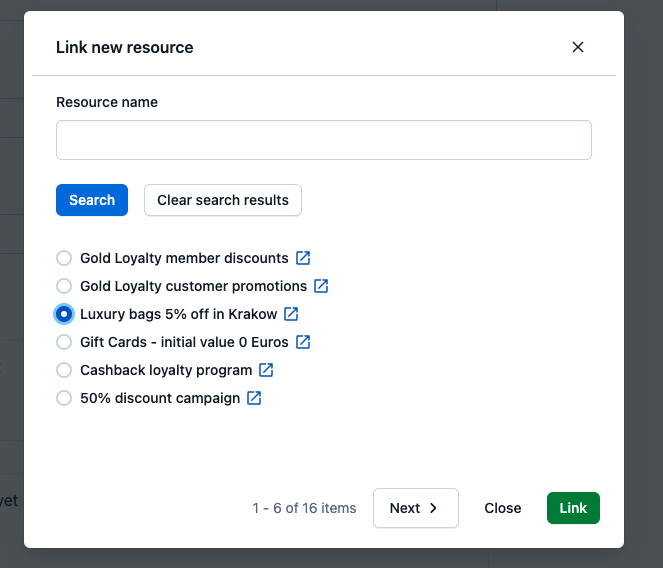 Once you choose the resource and the content is published, the **Entry ID** will be associated with the campaign, earning rule, or promotion tier in Voucherify.
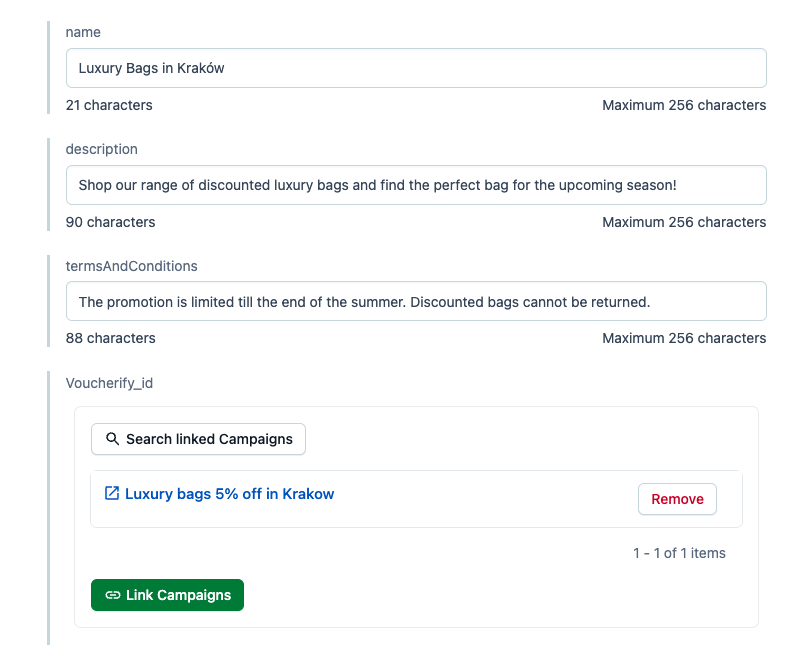 The linked **Entry ID**s will be returned via the Voucherify API in the form of metadata. Once you retrieve the campaign, promotion tier, or earning rule details from Voucherify via the API, the Entry ID list will be returned. Your development team must use the returned Contentful **Entry ID**s to fetch the content from the Contentful CMS.
If a campaign uses a voucher metadata schema, updating the content for that campaign will change the metadata of every voucher that was not published and not redeemed. Depending on the number of vouchers, this action can take from a couple of minutes to hours for multi-million voucher campaigns. During that time, the campaign will not allow any changes.
The linked **Entry ID**s will be returned via the Voucherify API in the form of metadata. Once you retrieve the campaign, promotion tier, or earning rule details from Voucherify via the API, the Entry ID list will be returned. Your development team must use the returned Contentful **Entry ID**s to fetch the content from the Contentful CMS.
If a campaign uses a voucher metadata schema, updating the content for that campaign will change the metadata of every voucher that was not published and not redeemed. Depending on the number of vouchers, this action can take from a couple of minutes to hours for multi-million voucher campaigns. During that time, the campaign will not allow any changes.